subnetting basics

If we checkout the ipconfig (in windows) or in linux (ip addr show) we should find a ip and a subnet-mask if we got one. As well there is a standard-gateway. In the following I will describe how this works and what this will tell you about your network.

With IPv4 the unit of all ip-addresses are capped and in the future we will swap to  IPv6 because of this cap.

If we have a network like 192.168.0.0 /24 you will note the “/24”. This means that the network uses 24 bit to declare the network. The rest of the bits is for the hosts (and network address and broadcast).

8 bits . 8 bits . 8 bits . 8 bits
The first 24 bit are for the network and the last 8 are for the hosts, network and broadcast address.

Now we want to split this network into 56 parts. After this we should have 56 networks. To do this we need to find out the value that you can put in n in 2^n >= the needed unit of the networks. So:

2^n >= 56
2^6 >= 64 … so we will take the 6

So now we check out the values of the last 8 bits that we have to use:

bit 8 -> 2^0 -> 1
bit 7 -> 2^1 -> 2
bit 6 -> 2^2 -> 4
bit 5 -> 2^3 -> 8
bit 4 -> 2^4 -> 16
bit 3 -> 2^5 -> 32
bit 2 -> 2^6 -> 64
bit 1 -> 2^7 -> 128

With this information we take n (6) and check out the bit of this (marked big). So now we now that we have 4 IP address for every network if we want to split it into 56 networks.

As well we should know:

  • The first IP address in a network describes the network
  • The last IP address in a network is the broadcast address

So for example the first network of 56 would be like:

192.168.0.0 – network address
192.168.0.3 – broadcast address

192.168.0.1 – first host IP
192.168.0.2 – last host IP

So our last network had 24 bits to describe the network. All of our new networks have 24 + n (6) bits to describe the network. In this case we had a network like /30.

As said if we check out the IP address information we get nothing like /30 or /24. Instead of this we will get the subnet-mask. But this is the same just wrote different. We just have to set all network bits to 1 and the rest to 0 and check out the address as decimal.

/24 -> 1111 1111 . 1111 1111 . 1111 1111 . 0000 0000 -> 255.255.255.0
/30 -> 1111 1111 . 1111 1111 . 1111 1111 . 1111 1100 -> 255.255.255.252 (just take 255 – 2^1 – 2^0)

The standard gateway is the next hop to the internet (if you have one) other way you have to config the standard gateway.

routing-table basics

Every router use a routing table to control the data-flow. Sometimes you have to set up the table. With this steps you can easy define the data-flow:

  1. Describe the local networks
  2. Describe the rest of all networks opposed to the standard-route
  3. Describe the standard-route (0.0.0.0)

The standard route is the way through the network to the internet. If there is no internet connection you have to define the standard-route but probably you have an internet connection.

Lets do this with an example:

unbenannt

We want to set up the routing table for the router “West”.

  • 10.0.1.0 (local) – by step 1
  • 10.0.2.0 (next network opposed to the standard route) – by step 2
  • 0.0.0.0 (standard route) – by step 3

Thats all to checkout the entries for the routing table.

One further thing: metric.

Metric are the units of the “hops”. If we are router “West” and we want to have the metric for the networks 10.0.1.0 and 10.0.2.0:

10.0.1.0 = local = 0 hops => metric = 0
10.0.2.0 = 1 hop => metric = 1

Thats all …

set up windows 10 newly

Today I set up my laptop new. The last times I had to organize a disc or a stick with the windows installation. For this I had to download the iso-file, install a programm to create a useble disc/stick and had to check out the windows key. This time I found something that handles everything for my automaticly. You can find it here:

settings -> update and security -> recovery

You can start it and even can choose if you want to keep your folder “my documents”. After this it will clear everything and reinstall windows 10.

With this I could use my day without spending time into the basic-preperations # Thanks 😀

dynamic read on JSON response in c#

If you want to work with a JSON-formatted response, there are many ways to handle this. In the following I could figure out a dynamic read that will give you the opportunity to use the different types.

The first code-example shows how to download some data with a given URL. For this you will need the assembly “System.Net”:

string url = "address?$format=json";
var webClient = new WebClient();
String jsonResponse = webClient.DownloadString(url);

The second code-example shows how to read out the single attributes. For this you have to include the assembly “Newtonsoft.Json”:

dynamic results = JsonConvert.DeserializeObject(jsonResponse);

string myName = results.Name;
string myFirstName = results.FirstName;
int myAge = results.Age;
//...

After using the JsonConvert.DeserializeObject-function you can use every single attribute.

JSON response via NAV

#This article will work with NAV 2016!

To get a JSON Response via NAV we can create a webservice-codeunit and publish it. Following this we probably use SOAP to publish the functions and will get a XML-response. In some projects it is easier to handle a JSON response. As well there are opportunities to read out a NAV response with the JSON format. The easiest way to do this is by publishing a page. To do this just go to the table “Web Service” (2000000076) and create an entry for a page. If you run this via the normal user-client (search for “web service”) you will see a Odata-link. This link is generated automatic. If you set on the Odata on the service tier and use this link you will get a response with the data of the page.

Probably it is xml-format but you can add the following at the end of you Odata-url:

?$format=json

Now your response should use the JSON-format.

If you want to do the same with a codeunit you will get no odata-link.  This is because we use a REST-service. A REST-service is done to have the basic-handler GET, POST, PUT, … . So if you would try to write some codeunit that should provide a json-response, the codeunit had to handle all of this basic-statements. A codeunit in NAV is not made to provide data like a real REST-service. But if you want to use data that way -> publish the data with a page and you can work with this.

rotate an image in c#

There are different ways to rotate an image in C#. The first is probably the easiest one but provides just the basic 90, 180, 240 and 360 degree. Here is the way to do this:

mainPicBox.Image.RotateFlip(RotateFlipType.Rotate90FlipXY);
mainPicPox.Refresh();

For this example you need the library “System.Drawing” and an image.

The next example shows how to turn an image with an given angle:

private Bitmap rotateImage(Image thisImage, float angle)
{
 var newBitmap = new Bitmap(thisImage.Width, thisImage.Height);

 using (Graphics g = Graphics.FromImage(newBitmap))
 {
  g.TranslateTransform(thisImage.Width / 2, thisImage.Height / 2);
  g.RotateTransform(angle);
  g.TranslateTransform(-thisImage.Width / 2, -thisImage.Height / 2);
  g.DrawImage(thisImage, new Point(0, 0));
 }

 return newBitmap;
}

At the end of the function the grafic draw a new image. Here I used a new point (0/0). This is the orientation of the new draw and left-top of the new picture.

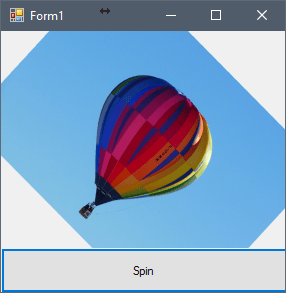
And this is the result:
rotation

codesnipped in wordpress

To have a nice view of code and use some syntax highlights there is a easy opportunity to show code in a better way. The basic way that i will show in the following lines is made for this languages:

actionscript3, bash, clojure, coldfusion, cpp, csharp, css, delphi, diff, erlang, fsharp, go, groovy, html, java, javafx, javascript, latex, matlab, objc, perl, php, powershell, python, r, ruby, scala, sql, text, vb and xml

Basically you can use it like this:

code1

(sry, I had to paste it as a pic to show it here to you)

As well there are opportunities to modify the code block with the following parameter:

  • autolinks (true/false) — Makes all URLs in your posted code clickable. Defaults to true.
  • collapse (true/false) — If true, the code box will be collapsed when the page loads, requiring the visitor to click to expand it. Good for large code posts. Defaults to false.
  • firstline (number) — Use this to change what number the line numbering starts at. It defaults to 1.
  • gutter (true/false) — If false, the line numbering on the left side will be hidden. Defaults to true.
  • highlight (comma-seperated list of numbers) — You can list the line numbers you want to be highlighted. For example “4,7,19”.
  • htmlscript (true/false) — If true, any HTML/XML in your code will be highlighted. This is useful when you are mixing code into HTML, such as PHP inside of HTML. Defaults to false and will only work with certain code languages.
  • light (true/false) — If true, the gutter (line numbering) and margin (see below) will be hidden. This is helpful when posting only one or two lines of code. Defaults to false.
  • padlinenumbers (true/false/integer) — Allows you to control the line number padding. true will result in automatic padding, false will result in no padding, and entering a number will force a specific amount of padding.
  • title (string) — Set a label for your code block. Can be useful when combined with the collapse parameter.

For more check out this:

https://en.support.wordpress.com/code/posting-source-code/

transparency in c#

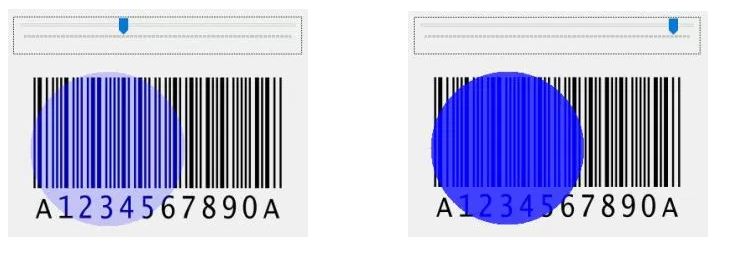
In .net and c# we have different opportunities to set something transparent. I want use a picture and add a blue semi-transparency. For this example I used a windows-forms-application and added a track bar and a picture box. In my code I use some functions of the library “System.Drawing.Drawing2D”. In the constructor of my main form I add the method “drawBlueTransparency” to the paint-event of the picture box.

public Form1()
 {
 InitializeComponent();
 trackBar1.Maximum = 255;
 pictureBox1.Paint += new PaintEventHandler(drawBlueTransparency);
 }

I also set the maximum of the track bar to 255 because this is the maximum of the alpha value that I used in the event-function (see variable  “alphaValue”). As well you could use a max of 10 and recalc the alphaValue.

 
private void drawBlueTransparency(object sender, PaintEventArgs e) 
{ 
 var rect = new Rectangle(20, 20, 184, 184); 
 var brush = new SolidBrush(Color.FromArgb(alphaValue, 0, 0, 255));
 e.Graphics.FillEllipse(brush, rect); 
} 

The method just creates a new rectangle and use it to draw a ellips in it. For this it also needs a brush that is initialized by a color with the alphaValue. If the alphaValue is 0 you will see nothing of the blue ellipse and if you set the alphaValue to 255 (maximum) you just will see the blue ellipse without any transparency. Everything in between is like semi-transparent.

Now I can set different alpha values and use the method “.Refresh()” to redraw the picture box.

 
private void trackBar1_Scroll(object sender, System.EventArgs e)
{
 alphaValue = trackBar1.Value;
 pictureBox1.Refresh();
}

Here you can see the result:

trans3

Easy! 🙂