process models

To define the best way how to work on projects there are some basic process models that are used every often:

waterfall model
The waterfall is split all task into the following parts:
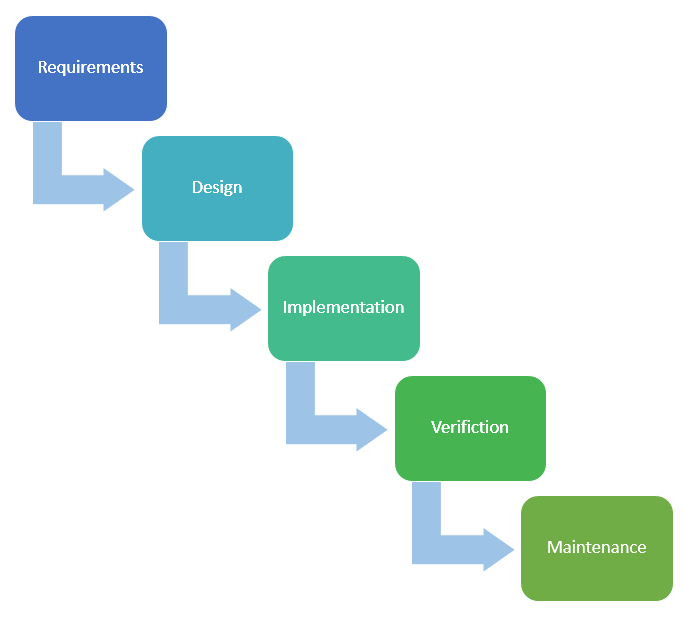
This phases define probably the most-used standard-pattern to realize a project. You start by checking out the requirements an go on by creating the first design for the implementation. Well done you give the design out to let someone implement it. To manage the quality you verify that everything is like needed and the product is ready to get used by the customer. Anyway your task is not done yet because you have to maintenance the product. For me this is the standard of every standard for implementing some developments.

spiral model
The spiral model is made to have small cycles to have more agility while developing. The following graphic will show you how this works:
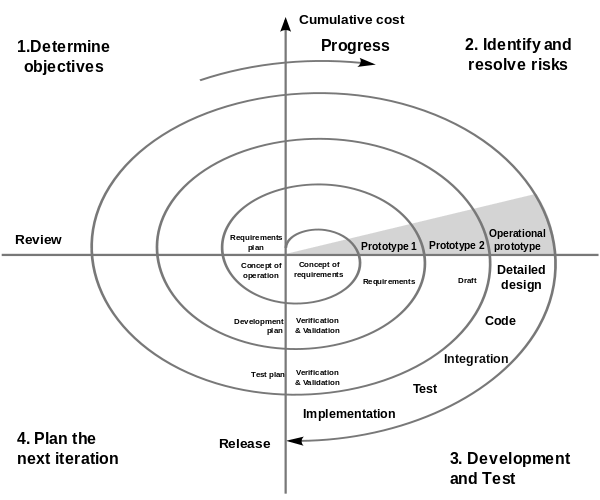
The model shows the different releases in cycles and how you work in every cycle. In every cycle you check out the needed fixes and changes requirements again and adapt your development to these changes. This will make sure that the final version is the sames that the customer wish to. Because of this re-management of everything you will need more time – but the result shine on you.

You can find the orginal-one here: Special Report CMU/SEI-2000-SR-008, July 2000.

v model
The v model provides for every implementation a single test. This concept makes sure that every single task is well done to avoid any kind of mistakes while the customers use. In this framework of implementation looks like this:
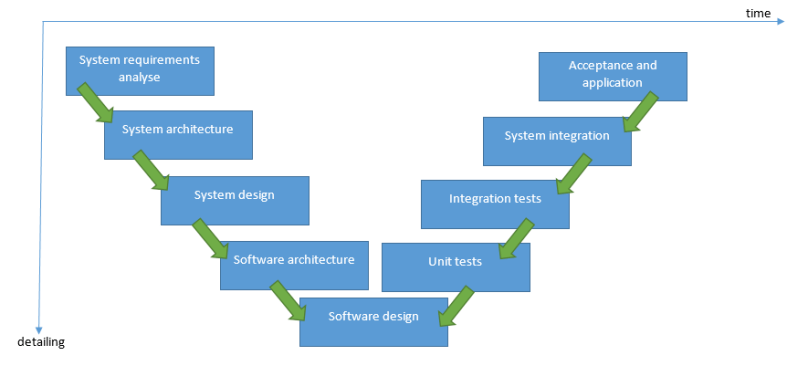
So basically you try to control every thing phase that is done on the left side by using different test-methods. For my self I do not think that you always should go with something like this because it is probably an overhead to test every single level. In some cases this is a good idea but generell I would not recommend this to you in fact to such a high test-time-expenses.

kanban
The last one that I would like to show you is the kanban. Kanban is a great system as well to work with which is like an alternativ to SCRUM. Here you have a backlog, a state of developing, an test-state and for sure the state of completion. For this a lot of users use a board that shows you what tast is in which state. With the most sofware-systems for this you can just drag and drop the task into the different states. With this you always have a great view of what is your team doing right now and the state of the task. This is pretty useful if you work in a team of developer with 3 to 8 team members. If you want to implement this I would invite you to check out the SCRUM system as well.
basic diagrams for developer

Today I want to describe three most used basic diagrams that every developer should know:

# flow chart
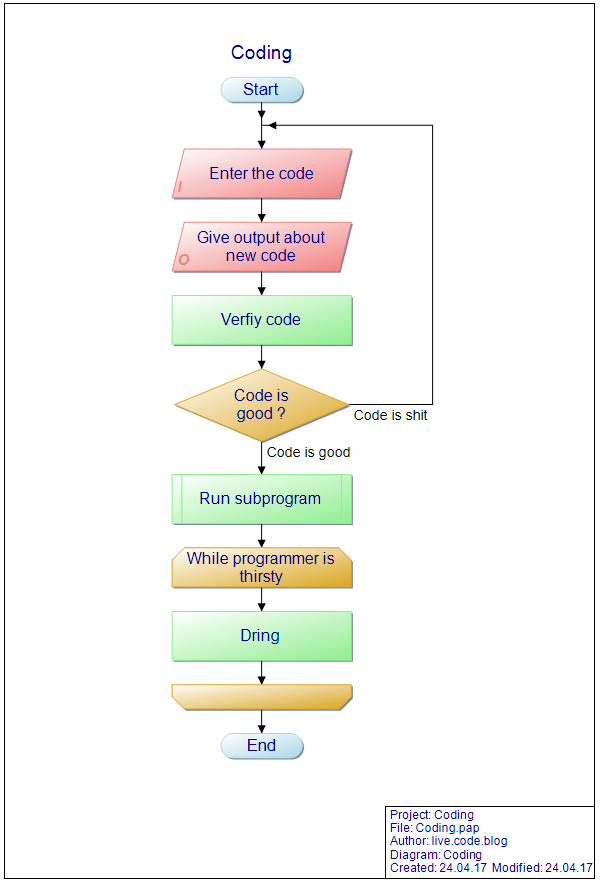
The flow chart is easy to read and do not need any further explanation. It is important to know the symbolic (compare with example: start -> input -> output -> process -> case -> subprogram -> loop with process between -> end). The example is done with “PapDesigner”. I can recommend this one. 🙂

coding_flowchart

# Nassi–Shneiderman diagram
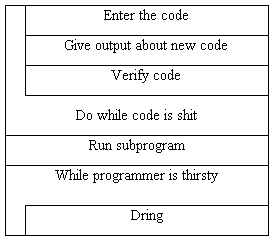
The Nassi-Shneiderman diagram is another way to visualize code. Comparing to the flow chart you can not go back if “Code is shit”. Instead you have to handle the this with a bottom-controlled-loop. As the flow chart does you read it form top to bot. Here is the an example that I did with this tool:

To model a database you always go with an entity-relationship-diagram (or entity-relationship-model). Here I want to describe the two most common notation.

# class diagram
A class diagram is one of the most used modeling-opportunities if we talk about object-orientated-programming. For this you will draw a rectangle for every class and write down the name of the class into the head of the rectangle. After this you you have to define variables and than the methods. All of them need a type, the parameter for methods and constructors and the a link to the live-time. For this we have 3 important:

  • – for private things
  • # for protected things
  • + for public things

After doing this we have to describe the relations. for this we decide between the following types:

  • association: This means that you have a relation between two tables. You mark this just with a line. Use this if you say: Table A has table B
  • aggregation: This says that table A is part of table B. Use this if you can say: Table A consists of table B. For this draw a diamond into the relation at table A.
  • composition: This is like an aggregation but in this case it is depending on existence. So if there is not entry of table A there is no entry in table B. For this fill the diamond black.

Anyway you always have to define the relation with 1, 0..1, 0..*, 1..*, 1, 1..6, …

For more check out Wikipedia.

osi-model

Again and again I read somethings about the osi-model without knowing it. This cause that I can not understand the things correctly. So I will describe the osi-model hoping to remember it and the different layers:

The user:
– layer 8: the user (this layer is more or less a joke and does not exists)

The application:
– layer 7: application layer (http, ftp, …)
– layer 6: communication layer or presentation layer (http, ftp, …)
– layer 5: session layer (http, ftp, …)

The transport:
– layer 4: transport layer (TCP/UDP, …)
– layer 3: network layer (IP, …)
– layer 2: data link layer (MAC, …)
– layer 1: physical layer (ethernet, …)

Layer 1 to 4 will manage the transport of all packages. Layer 5 to 7 provide the application-data-flow. Layer 8, which does not exists is the user. If it is a layer-8-problem than the it is the faul of the user.

visual studio shortcuts for debugging

First of all it is necessary to check out if you really want to debug while running the code. Anytime I look a developer starting the application I see him using the full debug-mode. The full debug-mode is slower and has some parts to do that you do not need if you do not want to debug actually. So first thing that I recommend to you is using [Ctrl + F5] to run the code. As well do not use a mouse. You are faster if you work with your keyboard as much as possible. If you really need to go to the debug mode you can use just [F5] do start the full-debug-mode. To set breakpoints you can use [F9].

While debugging you three basic ways to go throw the code. The first one is used by [F10] and will go over the next statement. To step into a function or a method you can use [F11]. To step out of a function or a method you can use [Shift + F11].

One further thing: To go to the next breakpoint you can use [F5] as well.

most important ports #tcp/udp

Today I want to describe the most important ports that a developer probably should know about. So check this out:

  • 20: ftp-data (file transfer; default data)
  • 21: ftp (file transfer; control)
  • 22: secure shell
  • 23: telnet
  • 25: simple mail transfer
  • 53: domain name system (DNS)
  • 67: boostrap protocol server (dhcp server)
  • 68: boostrap protocol client
  • 69: tpft (trivial file transfer protocol)
  • 80: http
  • 110: post office protocol – version 3 (pop 3)
  • 119: network news transfer protocol
  • 123: network time protocol
  • 137/138/139: NetBIOS
  • 143: internet message access protocol (imap)
  • 161/162: simple network managment
  • 443: https
  • 445: Microsoft DS
  • 465: smpts (smtp secure)
  • 500: ip-security vpn
  • 587: simple mail transfer submission (smtp)
  • 993: impas (imap4 over tls/ssl)
  • 995: pop3 over tls/ssl
  • 989/990: ftp over tls/ssl
  • 3389: remote desktop

preceived competence

After reading “Ăśberzeugt” (eng.: convinced) by Jack Nasher here are some point that I will try to implement:

  • priming: remember why you are the best to modify your subconscious and send out competence
  • do not be modest with your core competence
  • if you have to announce positive things show maximal presence – if you have to announce negative things don’t
  • if you have to announce mistakes than say it clearly and than switch to a positive point
  • anytime you tell the good things than the negative and finish with the second-best point
  • show how hard it is/was to accomplish the target and if you could not get it: link to problems that were not your fault
  • do not show that you invest your live to accomplish a target – it was easy …
  • speak a little bit faster than normal, clearly, fluently and a little bit deeper and louder than the average
  • use a great treasury of words and do not repeat some words
  • look into other eyes if you are talking and try to avoid eye-contact if the other is talking
  • have a good difference between you and the other people like 1,5 m
  • stand a little bit diagonally to other
  • make sure that you are taller than the other – if they are taller try to make all sitting – if you are taller try to stand next to them
  • sit a little bit relaxed and try to sit on the bedside of the table if you are not in a country that has a problem with this
  • use the the “halo”- effect
  • be attractive as possible
  • make sure that you wear the clothes for your next job – not the job that you do right now

some inspiring points

I read the book “Let’s talk about change, baby!” by Ilja Grzeskowitz. Here are some inspiring points that I note:

  • think like a businessman, even if you are not
  • read much as possible
  • take a walk in nature
  • travel around the world
  • work hard and never give up
  • think big
  • take responsibility
  • family & friends
  • decide
  • go for 101 % – give a little bit more than needed – every time
  • go with positive people – avoid negative ones
  • be the hero of your kids
  • invest in yourself
  • sport
  • go with good shoes
  • learn the next foreign language
  • idea-book
  • have a place to reload your energy

increase visual studio coding speed

This is a collection of how to increase your coding speed in visual studio. I will write this based on Visual Studio 2017:

Search:
You have the ability to search for everything you can imagine with [(ctrl + q)]. With the escape-key you can go one step back with the cursor into your code.

Bookmarks:
With bookmarks you can go to set a reminder to review this code-part later by pressing [(ctrl + k) + (ctrl + k)]. This works like a debugger-point. By pressing [(ctrl + w) + (ctrl + k)] you can see all bookmarks. With the menu-key (right next to the right windows-key) you can rename or delete a bookmark. With just hitting enter you can go and visit a place that you marked with a bookmark.

Code snippets:
As well there are a lot of code snippets that will increase your coding speed. Here are some examples:

  • ctor: constructor
  • prop: property
  • propfull: property with full get and set methods
  • wl: write line
  • equals: overriding object.Equals and object.GetHashCode function
  • try: try block
  • tryf: try block with a finally
  • for: a for loop
  • forr: a for loop which will decrease
  • ctor: constructor
  • foreach: foreach loop; if you created a list right before doing this it will auto-suggest the name of the list that you created
  • while: while-loop
  • do: do-while loop

Auto-Format:
To auto-format your code you can use the shortcut [(ctrl + k) + (ctrl + f)]. Another opportunity is to download the Microsoft “Productivity Power Tools“. After installing you have to go to Options -> Productivity Power Tools -> PowerCommands:General and make sure that “Format document on save” is set. Now you just have to save the file ad it will auto-format everything. As well it will remove all of the using-statements that are not used right now.

Switching Tabs:
As well you should use the keyboard to switch the tabs in Visual Studio. For this you can use the shortcut [(ctrl + tab)]. To go to the last tab you can go with [(ctrl + shitft + F6)]. To close a tab you can use [(ctrl + F4)].

Navigation
To navigate through your project I recommend you to use the shortcut [(ctrl + ;)]. This will open an dialog which will give you the opportunity to search for everything that you need. You can search for a class, a method, a file, …

Concentration to the right code
To bring you into the code you can switch between full-screen and the normal view with [(shift + alt + enter)]. To collapse code blocks you can use [(ctrl + m) + (ctrl + m)]. This works on every level (class, method, …).

Let Visual Studio work for you
In Visual Studio there is another godlike opportunity to avoid coding. If you have any part that is underlined you can go there and use [(alt + enter)] to have some options that will suggest you to finish your code correctly:

linux server basics

Today I want to show the basics that everyone should know by using a linux-server. In this case I will use ubuntu – so if you do not use debian you may have some small differences.
I start with the smallest one: “w”
This will give you all user that are currently in use of the server. This can look like this:

21:01:58 up 9:45, 2 users, load average: 0,00, 0,00, 0,00
USER TTY VON ANMELD@ UNTĂ„ JCPU PCPU WAS
morten tty1 07:56 5:36 0.06 s 0.04 s -bash
morten pts/0 192.168.178.26 20:58 2.00 s 0.06 s 0.00 s w

If you want to update your server you should always go with:

  • sudo apt-get update
  • sudo apt-get upgrade
  • sudo apt-get dist-upgrade
  • sudo do-release-upgrade

The first one (“update”) will fetch the list of available updates. With the second command (“upgrade”) you upgrade all current packages. With the third one (“dist-upgrade”) you will update all new packages. And with the last one (“do-release-upgrade”) you will update the system to the last lts-version that is out.

The following commands help you to get some network and connection information.

  • arp: will show the Ethernet connectivity
  • ifconfig: will give you all information about our IP; as well you can use “IP address”
  • ping: with that one you can ping another server, computer, IP address, …

To set the root password you use “sudo passwd root”. To do this you need admin-rights – not surprisingly. After doing this you can use “su” to run every following command as root. If you do not want to use all following commands as root you have to set a sudo to the start like we did before here. Sudo tells that that single command is executed with admin-rights.

To edit files you have a lot of opportunities. But there are two that are pretty standard and should give you all you need to read and modify files.

  • nano
  • vi
  • cat

With the cat-command you just show the content of file – without opportunities to modify the file.

And two really basic must-haves:

  • cd: will set your current position to the path that you specify
  • ls: will show all files; “ls – l” will give you a better list of all files

knowledge: next level

To bring my knowledge to the next level I did some research. This is my summary to promote my brain-performance:

  • brain-gym:
    Some research tells that you improve your brain-performance by doing some strange movements. You can find some strange exercise just by google it. But as well you can do this just by going out and jogging.  I go for running one to two time a week. And this is how you can activate every part in your brain.
  • extend knowledge:
    It is important to get that much knowledge as possible. You should go for that knowledge that you are interested in and soak up everything that you get. One point to do this is the following.
  • books:
    If you read a half to a hour a day you probably read one book a week. That is huge because like this you get around 50 books in a year. So now check yourself. How many books do you read. Compare this level with 50 books a year. Probably you miss knowledge of 44 to 49 books every year. It is good do increase your reading-speed before starting reading now. And if you do not have the time to read than implement it into some of your basic tasks that you do everyday. If you travel 30 min. a day to go for work you have two times 30 min. to read in the train or hear some read book while driving in the car. Remember the difference between doing it and just going on like normal are around 46 books a year. A lot of knowledge …
  • brain-jogging:
    As well you can go for brain-jogging. For me I do not like to do this because I rather like to kick my brain in normal tasks like: Learn phone-numbers, learn facts that you read or heard, play poker or chess, … I would never have fun while playing this “brain-jogging” games. But I think there are a lot of things that you can do instead of this while reaching the same: Good activities in both brain-parts!

As well there are some point promote my creativity:

  • breaks:
    If you go for breaks you do not waste time if you relax in a good way. If you relax both of your brain-parts communicate a lot – which is pretty rar. As well it is good to think about things that you learned so anyway you should go for some breaks if possible every day.
  • classic-music // alpha waves:
    Based on some researches classic music has the perfect frequency to promote your brain. So if you hear some of this music of better play some classic instruments it would be good to improve your brain-activities. If you do not like classic music, you should try some alpha waves (search on youtube).
  • know everything in your business:
    To create new ideas in your business you need to have the best basic that someone is able to have. So you should know everything about your business. One of many examples: The founder of the plain worked as bicycle-manufacturer. They had a lot of knowledge in wheels and frameworks. Without this knowledge probably they never had developed a working plain.

To break my limits I’d like to:

  • go for new experiences:
    If you see new places in the world, try some new sport, read some new books, discuss with people that you do not know, play some new games or do other new things you extend your mindset and expand your horizon. As well this will help you to stay creative and get some new influences with some new aspects. Do not miss this!
  • idea-book:
    As well you always should be able to note ideas in a idea-book. You can use your phone with OneNote for this or just having a physical small book with you. Note everything to avoid loosing cool ideas. Some of them will be small ideas. But if you note them they can grow easy.
  • passion vs luck:
    Passion is another thing that is necessary to reach difficult targets. With passion you can avoid the need of luck. Here is an example: There is a fisher and everyone tells him that it is stupid to go for fishing a super-rar-fish, because if he go out now he will get the fish for just lets say 1 %. Buf if the fisher really wants to reach this goal and having a picture with him and the super rar fish in his hand he will go out and do this for ten thousand times. While doing this he do not need to has some luck. He will get it anyway because he will do it for ten thousand times.

To improve my memory I should go for:

  • mental mailbox:
    A mental mailbox is a link between the information that you want to remember and something that is build by a system that makes you easy remember that things. For example you can use your body for this. So look to your right foot, your knees and waist. So now imaging a the white house which is in Washington standing in a small version on your foot. Next on your knees you can see Adam and Eva eating the red apple. And at your waist is your son eating something from the bistro “Jeffer”. And if you go on with more parts of your body and more of that things you will check out that you know every name of the american president in sequence.

    • 1st -> Washington
    • 2nd -> Adams
    • 3rd -> Jefferson
  • 10 or more – body or house:
    If you run well with this pattern you can go for more than 10 while using your house. Do not think about your body. Do think about one room in your house for 10 information. In the next room you will store the next 10 information and so on … With this you are able to store about 100 and more information about a subject.
  • “geist ist geil”:
    While doing this you can use the knowledge that you learned. It is really impressive if someone can give you the 26st president of america. In Germany I call it “geist ist geil” which means something like spirit is awesome.

How to remember numbers:

  • fast calculations:
    There are a lot of methods to calculate fast without using a calculator or something like this. While using this methods instead of using a calculator you improve your ability to calculate and promote your brain. You can find a lot of them by using google. I will not list them here right now.
  • one number – one picture:
    As well to remember numbers you allways should have a system like the mental mailbox. Use a picture for every number – for example: 0 = an Egg, … As well you should learn it in pair like this:
    0158273 -> 01 – 58 – 27 – 3
    With this you have a pair of words that you combine to create a story or something else that link it together.
  • relaxe, practice and do not give up:
    This pattern needs some time to practice and if you fail you have to go on. So do not give up if it does not work in the first days and carry on.

Some points to learn new languages:

  • fail no 1:
    If you ask people if they learn some languages right now .. the most will tell you that they do not. Most of them give up learning languages before beginning it. This is the fail no 1. Do not do this like them. Do not give up learning a language because you think you do not have talent.
  • link it:
    Like learning numbers or everything else you should like every world that you want to learn with as much as possible things in your head. This will help you to remember the things in a better way.